
QR Code Form Sharing for Events, Schools, and Businesses
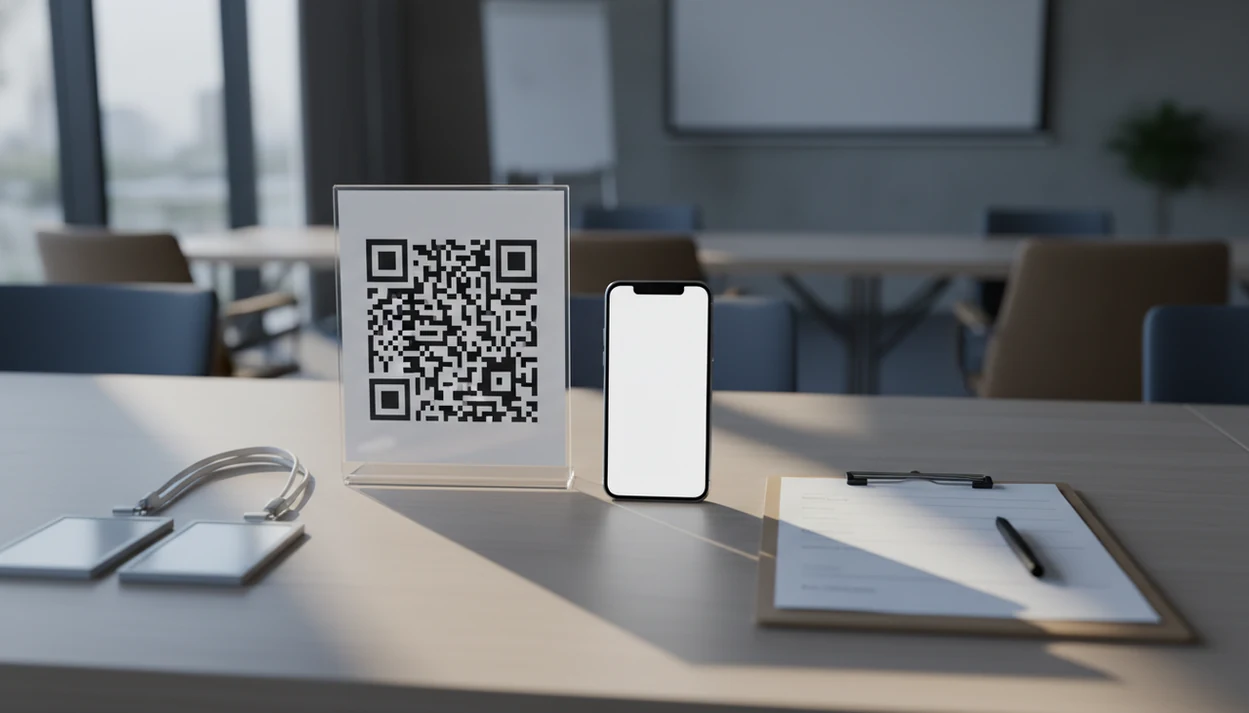
QR code form sharing lets people scan a code with their phone and open your online form instantly, without typing a long URL. It works best for in-person moments like event check-ins, classroom polls, customer feedback, and quick registrations, as long as you provide a safe link and an alternate access option.
Definition: QR code form sharing is the practice of encoding an online form, survey, quiz, or registration URL into a scannable QR code so respondents can open it on a mobile device.
TL;DR
- Use QR codes when people are physically near your poster, slide, desk, receipt, handout, or product packaging.
- The QR code only opens the link; privacy, spam control, permissions, and response handling depend on the form platform.
- Always pair the QR code with a short URL or backup method for people who cannot or do not want to scan.
QR Code Form Sharing Definition for Forms and Surveys
QR code form sharing stores a published form URL inside a scannable code; it does not store the submitted form data itself. The respondent scans, the browser opens, and the form platform handles the questions, permissions, and responses.
People often search for this as “share form by QR code,” “QR survey link,” or “QR registration form.” The basic order stays the same: build the form, publish it online, copy the link, then encode that link into a QR image. If the form is still a draft, private, or blocked behind the wrong login setting, the QR code can’t fix it.
Tools like Forms AI help create forms, surveys, quizzes, and registrations with AI templates and drag-and-drop editing, but the QR code still points to a live URL. Other common form builders, including Google Forms, Microsoft Forms, Typeform, and Jotform, can also publish links that are turned into QR codes; the important difference is how each platform handles permissions, spam control, mobile layout, and response management. Start with the form’s job first. Then make the code.
Five QR Code Form Sharing Facts People Should Know
- A QR code usually encodes a plain URL that opens in the phone’s browser or default scanning view.
- Many form builders can publish a shareable link and provide a downloadable QR code for printing or slides.
- QR survey links work well for in-person feedback, check-ins, classroom polls, and quick satisfaction surveys.
- Security depends on HTTPS, form permissions, spam controls, and the information you choose to collect.
- QR forms still need internet access and a scanning-capable device, even when the code scans correctly.
QR use is familiar to many people now. Pew reported that 45% of U.S. adults used a QR code at a restaurant or bar in the prior month in 2022, up from 15% in 2020 source. Still, a printed code beside name tags spread across a banquet table should include a short URL too.
How QR Code Form Sharing Works Behind the Scan
QR code form sharing works by turning a form URL into a visual code that a phone camera can decode. The data flow is simple: create the form, publish the URL, encode the URL, scan the code, open the browser, submit the response.
A static QR code points directly to one fixed URL. A dynamic QR code usually points to a redirect URL, which can send scanners to a different destination later. That matters if you print posters before finalizing a session feedback form.
The QR code is only a pointer. The form platform stores the response list, applies required fields, sends notifications, and runs any logic. Optional UTM tags can identify whether scans came from posters, slides, booths, receipts, or locations. AI-generated questions, templates, conditional logic, and response analysis matter more than the square QR image. The code gets people there; the form does the work.
Before You Share a Form by QR Code
“Can I share this form by QR code?” Yes, if the form is published, reachable, and appropriate for public scanning. Test the exact form URL before you generate or print anything.
Use HTTPS and confirm the form opens without unnecessary login barriers. If the form is for a closed group, decide whether responses should be authenticated, limited to one response, anonymous, or open. That choice affects trust and data quality.
Keep the mobile form short enough for the moment. A customer at a phone screen behind a shop counter may answer “Preferred appointment time” and “Service needed,” but not a 24-question intake during the lunch rush. For phone-first setup, the workflow in how to create a form with phone covers the build, preview, and share steps. Prepare a short URL or paper backup for low-signal rooms and accessibility needs.
How to Use QR Code Form Sharing in Forms AI
Use QR code form sharing by building the form first, publishing the link, then generating a QR code from that live link. In Forms AI, the practical sequence is build, preview, share, then test in the real place where people will scan.
1. Create the form
Start with an AI template or drag-and-drop editor for a form, survey, quiz, or registration. Keep required fields few, such as “Parent/guardian name,” “Volunteer shift,” or “Preferred appointment time.”
2. Publish the form link
Review the mobile layout, consent language, required fields, and confirmation message. Publish the form and copy the shareable link.
3. Generate the QR code
Create or download the QR code from the form link. A focused mobile form builder app is useful when edits happen from a phone between customer calls.
4. Test the scan
Scan on more than one phone before printing or presenting. Try cellular data, not only office Wi-Fi.
5. Display the code
Place the code with a plain call to action and short URL. “Scan to register” beats “More information.” For a wall sign or conference slide, test from the same distance a real attendee will stand, not from six inches away at your desk.
Best QR Survey Link and QR Registration Form Use Cases
QR codes are strongest when the person is already in a physical place or viewing a shared screen. For in-person collection, a QR form is often easier than a typed link because the respondent can act before the moment passes.
Events: Use QR codes for check-ins, session feedback, waiver forms, lead capture, and post-talk surveys. An event organizer can check RSVP counts in a parking lot while a vendor texts about table numbers.
Schools: Use them for attendance, classroom polls, parent signups, quizzes, and club registrations. A teacher can copy a quiz link into a class announcement five minutes before the bell, then display the QR code on the board.
Businesses: Use receipt surveys, in-store feedback, service intake, warranty forms, and appointment requests. If you’re building the survey itself, the how to make survey on phone guide explains the short-question structure.
Nonprofits and community groups: Use QR codes for volunteer signups, donation interest forms, and event RSVPs after plastic chairs fold.
Common QR Code Form Sharing Mistakes and Fixes
Most QR code form problems come from sharing too early, printing too small, or testing in better conditions than respondents will have. Fix the form and the scan environment before you blame the code.
- Publish the final form first. Open the exact link in a private browser or on another phone. If it asks for the wrong login, shows a draft screen, or blocks outside users, change the form permissions before generating the QR image.
- Make the code easy to see. Use strong dark-on-light contrast, leave a quiet margin around the square, and size it for the real distance. A code that works on a laptop may fail on a poster across a hallway or a slide shown for ten seconds.
- Test outside the office bubble. Scan on cellular data and on more than one phone, especially in gyms, basements, school auditoriums, vendor halls, and parking lots.
- Add a short URL beside the code. It helps people with scanning trouble, assistive needs, locked-down cameras, or simple hesitation.
- Reprint when the destination changes. If the final form URL changes after approval, regenerate the QR code and replace the printed materials. Old codes keep sending people to old links.
QR Code Form Sharing Safety and Privacy Checks
QR codes are not automatically secure, private, or encrypted. They can point to a safe HTTPS form, or they can point to a fake page that asks for personal data.
Use HTTPS links and a recognizable domain when possible. The FTC specifically warns people to inspect QR codes before scanning, avoid entering sensitive information after scanning an unexpected code, and confirm the destination URL before acting source. Avoid collecting unnecessary personal, student, payment, or health information through a public QR form. Collect only what you need, then turn answers into next steps.
Add CAPTCHA, rate limits, unique links, or authentication when spam or abuse is likely. Inspect printed codes in public places for stickers or overlays, especially on posters, table tents, and payment-adjacent signs. In a 2023 controlled phishing study, 51% of participants scanned at least one malicious QR code, and 34% entered personal data on the fake site source. Careful app-first form builders for creating forms, surveys, quizzes, and registrations should deliver clear templates and tap-friendly editing, not a shortcut around privacy decisions.
Common QR Code Form Sharing Myths
QR code myths usually come from treating the code as the product. It is not. The form builder controls the questions, logic, automations, access rules, and response handling.
Myth: QR codes themselves are secure. Most QR codes just contain a destination, often a URL. The linked page determines the real risk.
Myth: a professional-looking printed QR code proves the form is safe. Anyone can print a clean code or place a sticker over an old one.
Myth: everyone can scan a QR survey link easily. Some people lack smartphones, mobile data, camera access, or scanning comfort. The pocket check is real.
Myth: QR registration forms work offline. Scanning avoids typing, but loading and submitting still require internet access.
Myth: the QR code is the main feature. For longer forms, a multi page form builder or conditional logic often matters more than the code image.
Limitations
QR code form sharing is useful, but it should not be your only access path. Plan for the messy edge cases before printing 500 flyers.
- It requires internet connectivity, even when the scan itself works.
- It excludes some people without smartphones, mobile data, camera access, or scanning comfort.
- It can create privacy concerns when people submit sensitive answers in public.
- It can attract spam, duplicate submissions, or low-quality responses if the form is fully public.
- It can be replaced or covered by malicious QR stickers in public places.
- It can fail when printed too small, placed too far away, shown briefly, or displayed with poor contrast.
- It should include a short URL, staff assistance, or paper alternative.
- It may need a different sharing method when the form belongs on a website; in that case, embed form on website is often cleaner.
Backup access is not optional.
FAQ
How do QR forms work?
A QR form works by encoding an online form URL into a scannable code. When someone scans it, the phone opens the form in a browser so they can submit answers.
Can I share any online form with a QR code?
Usually yes, if the form is published online and its permissions allow the intended audience to open it. Private drafts, restricted logins, and expired links may block access.
Are QR forms secure?
QR forms are only as secure as the destination site, HTTPS setup, permissions, and data practices. The QR code itself does not guarantee safety.
Do QR forms work offline?
No. A phone may scan the code without typing, but loading and submitting the form require internet access.
What is a QR survey link?
A QR survey link is a survey URL encoded into a scannable QR code. It lets people open the survey from a poster, slide, receipt, or display.
What is a QR registration form?
A QR registration form is an event, class, appointment, or signup form opened by scanning a QR code. Apps such as Forms AI can create the registration form, while the QR code routes people to it.
Can QR codes collect form responses?
No. The form collects responses, while the QR code only sends people to the form URL.
Should I include a short URL with my QR code?
Yes. A short URL improves accessibility, gives people a trust cue, and provides backup access when scanning fails.