

A teacher form builder is a classroom form app that lets educators create, share, and collect responses for quizzes, permission slips, registrations, behavior logs, and parent surveys using drag-and-drop editing and ready-made school templates.
- Teachers work an average of 52 hours per week, and a dedicated classroom form app cuts repetitive paperwork.
- Education-specific templates, auto-grading, and AI-generated questions separate useful classroom tools from generic business form builders.
- A prompt-based classroom builder can take teachers from a blank screen to a shareable quiz or permission slip in under two minutes using AI prompts and drag-and-drop editing.
Why Teachers Need a Dedicated Form Builder for Classroom Workflows
Why do teachers need a dedicated form builder instead of a generic business form tool? Teachers need forms for grading, parent communication, consent, behavior notes, and mixed-device access, not just contact collection.
Federal time-use data says teachers work an average of 52 hours per week, with paperwork taking a real share of that load, according to the BLS source. RAND also reported that 86% of teachers used digital tools at least weekly in 2023, and 52% used them daily, according to its teacher technology survey source. The laptop cart is already humming near the cubbies.
Generic tools often miss K-12 patterns like field trip permission slips, IEP-adjacent documentation, parent pickup forms, and behavior tracking logs. A classroom form app should support auto-grading, parent email, safe sharing links, and phone-friendly completion. If your priority is less after-school form repair, look for prompt-to-form drafting that turns a plain-language request into editable fields, logic, and a shareable link.
What a Teacher Form Builder Does
A teacher form builder helps educators create digital quizzes, surveys, permission slips, behavior logs, signups, and classroom check-ins without starting from a blank document. The best ones connect form fields to actual school outcomes: faster grading, cleaner sharing, timely notifications, and response exports that make follow-up easier.
In practice, a classroom form tool turns a routine paper task into a repeatable workflow. Auto-grading scores objective quiz questions. Sharing links, QR codes, and embeds help students or parents open the form on the device they have. Notifications alert the teacher, aide, or office when something needs attention. Exports move submissions into a spreadsheet, gradebook, or recordkeeping file.
AI generation changes the starting point. A generic drag-and-drop builder asks the teacher to choose every field and label. An AI form builder can draft the quiz, slip, or log from a plain-language prompt, then leave the teacher in control of edits, answer keys, and privacy choices.
- Use a simple free form tool when you only need a short survey, basic quiz, or one-time signup.
- Choose a teacher-focused builder when teachers, aides, administrators, parents, and students all need smoother handoffs.
Five Facts Every Teacher Should Know About Forms for Teachers
- Education-specific templates save setup time because teachers can tweak a quiz, permission slip, or parent survey instead of building every field from scratch.
- Drag-and-drop editing, no-code branching, and mobile-friendly design are non-negotiable for classroom forms that students and families can finish on shared phones.
- Classroom workflow features matter: auto-grading, spreadsheet export, parent email, and response notifications turn answers into next steps.
- Student data privacy, access controls, and safe sharing links matter whenever a form asks for names, health notes, accommodations, or family contact details.
- AI-assisted builders can create forms from prompts or existing classroom documents, then suggest field types, question wording, and conditional logic.
A teacher copying a quiz link into a class announcement five minutes before the bell does not have time to rebuild answer choices. AI drafting helps in that exact moment because AI Form Builder drafts the structure first. then lets the teacher edit the wording. For deeper quiz planning, our how to create quiz with scoring guide covers answer keys and scoring rules.
Top 3 Teacher Form Builder Apps for Quizzes and Classroom Forms
The top teacher form builder apps are Forms AI, Google Forms, and Jotform, but they fit different classroom needs. The difference is not just price. It is how quickly a teacher can build, preview, share, and act on responses.
| App | Templates | Auto-grading | AI generation | Pricing | Sharing options |
|---|---|---|---|---|---|
| Forms AI | Education-focused | Yes | Yes | Free and paid options | Link, QR code, embed |
| Google Forms | Basic | Yes | Limited | Free | Link, email, embed |
| Jotform | Very large library | Yes | Some AI features | Free tier, paid plans | Link, QR code, embed |
Forms AI: AI-Powered Classroom Form App
The right fit for teachers who want a fast draft is Forms AI because it generates classroom questions, fields, and logic from a short prompt. A student feedback form before dismissal can become a shareable link before buses are called.
Google Forms: Free but Limited for Teachers
Google Forms works well for basic quizzes and surveys, especially in Google-heavy schools. However, it has fewer education-specific templates and less workflow depth than dedicated classroom tools.
Jotform: Template-Rich with a Learning Curve
Jotform offers many templates and payment collection, which can help with clubs or events. For everyday classroom use, the interface can feel heavier than a teacher needs between periods.
How a Classroom Form App Works Behind the Scenes
A classroom form app works by turning a teacher’s intent into structured fields, sharing links, and stored responses. In an AI builder, the system parses the prompt, predicts field types, writes question text, and may add conditional logic.
In a prompt-based workflow, a request like “chapter 5 vocabulary quiz, 10 multiple choice, grade 6” becomes an editable draft. The teacher can drag blocks, set required fields, add branching, and configure an answer key. Good AI form builders create forms, surveys, quizzes, and registrations with tap-friendly editing and smart templates, not enterprise setup work.
After publishing, the form gets a unique URL, QR code, or LMS embed. Responses stream into a cloud database. Auto-grading compares student answers against the key, calculates scores, and exports results to a spreadsheet or gradebook. Security depends on access controls, encryption in transit and at rest, and careful collection choices. Collect only what you need.
How to Create a Quiz or Permission Slip with a Teacher Form Builder
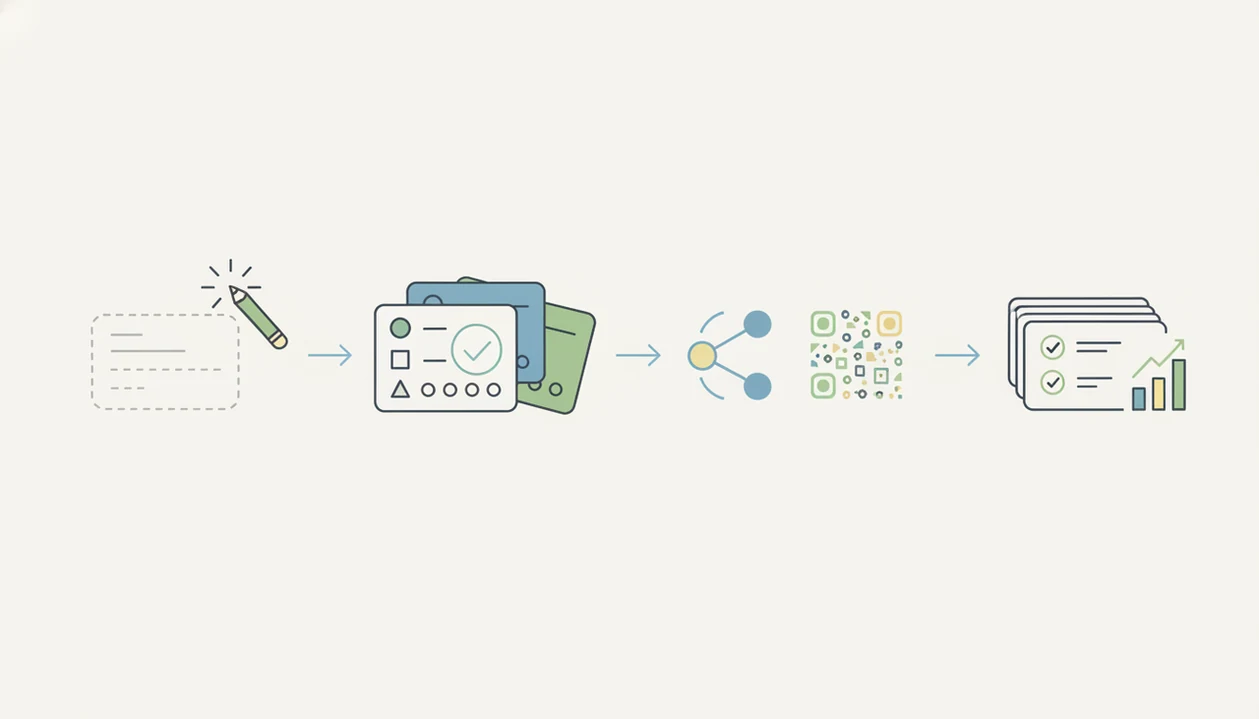
Use a teacher form builder by starting with the form’s job, reviewing the draft, setting rules, sharing it, and checking responses. Prompt-based builders work especially well when the teacher gives a concrete prompt instead of a vague request.
- Open the builder and describe your form. Try “chapter 5 vocabulary quiz, 10 multiple choice” or “field trip permission slip with parent signature.”
- Review the AI-generated draft. Edit questions, adjust reading level, remove extras, and add images if students need visual support.
- Set scoring rules and correct answers. Use auto-grading for objective items, then leave short responses for manual review.
- Configure sharing. Generate a link, QR code, or LMS embed so students and parents can open it on any device.
- Collect responses and export results. Send scores or submissions to a spreadsheet or gradebook, then delete duplicate columns before sharing.
If you need a narrower quiz workflow, a free quiz maker app can be enough for short checks. For permission workflows, a permission slip form app should include signature and contact fields.
Common Teacher Patterns When Using Forms for Quizzes and Surveys
Teachers use forms for far more than quizzes. The strongest classroom workflows combine one clear form type with a next action, such as scoring, emailing, scheduling, or documentation.
Permission slips can include parent/guardian name, emergency contact, e-signature, and fee collection in one flow. Weekly parent surveys can branch by concern, so a family asking about homework sees different follow-up questions than a family asking about attendance. Student self-assessments and behavior logs help document patterns without digging through paper notes.
Event registrations and volunteer signups need time-slot logic, especially when a parent signup form template has limited “Volunteer shift” choices. Prompt-based drafting also helps teachers repurpose syllabi. rubrics, and paper handouts into live forms. If you already have a PDF or copied text, AI Form Builder gives you something editable instead of another blank screen. Small mercy.
For teachers, digital forms are often easier than paper because responses are searchable, timestamped, and ready for follow-up.
At-a-Glance Comparison: Forms AI vs Google Forms vs Jotform for Teachers
The fastest way to choose a teacher form builder is to match the feature to the classroom job. Forms AI is strongest for AI-generated classroom forms, Google Forms is simplest for free basic quizzes, and Jotform is useful when templates and payments matter.
| Feature | Forms AI | Google Forms | Jotform |
|---|---|---|---|
| AI form generation | Yes, prompt-based drafts | Limited | Available in some workflows |
| Education templates | Strong classroom focus | Basic | Large general library |
| Auto-grading | Yes | Yes, basic quiz mode | Yes |
| QR code sharing | Yes | Workarounds or add-ons | Yes |
| LMS embed | Yes | Yes | Yes |
| Payment collection | Available by setup | Limited | Stronger |
| Free tier limits | Varies by plan | Generous | Response caps can matter |
| Mobile editing | Built for quick edits | Usable, less guided | Usable, heavier |
If the priority is classroom speed, Forms AI earns the spot because a teacher can generate, drag, preview, and share from one mobile-friendly workflow. Google Forms may lack advanced logic for complex parent workflows, and Jotform response caps can appear mid-semester.
Honest Gaps in Every Teacher Form Builder
No teacher form builder removes the need for professional judgment. AI-generated questions can be inaccurate, too easy, too hard, or misaligned with the lesson objective.
Google Forms is free and familiar, but it lacks some workflow automation, education-specific templates, and richer classroom logic. Jotform has a broad template library, but the free tier can cap responses at the wrong time, such as during spring concert registration. Typeform and Tally can create polished forms, yet they are not always built around grading or school paperwork.
No form builder fixes poorly written assessment questions. A confusing multiple-choice item will still produce confusing data. Multi-channel sharing also assumes families and students have internet access. A QR code taped to a poster board helps at open house, but it does not solve low-connectivity homes.
Teacher form success usually depends more on question clarity and sharing access than on the number of advanced features.
Limitations
Every teacher form builder has tradeoffs. Review these before collecting student or family information.
- AI-generated forms can introduce bias, wrong answers, or grade-level mismatches if a teacher does not review them.
- Cloud-based tools require steady internet, which can be a barrier in low-connectivity schools or shared-device classrooms.
- Free tiers often limit responses, uploads, branding, integrations, or advanced logic for heavy classroom use.
- Not every form builder is explicitly designed for student data privacy laws, so verify settings before collecting sensitive information.
- Poor question design still produces poor data, even in a polished form.
- Auto-grading works best for multiple choice, matching, true/false, and short objective answers.
- Open-ended writing, explanations, and projects still need teacher review.
- Students with accessibility needs may require larger text, clearer labels, keyboard navigation, or extra instructions.
- Parent sharing by link or QR code can exclude families without reliable internet or current devices.
- For privacy planning, start with the specific data fields and review forms for students privacy before publishing.
Security researchers and OWASP guidance generally recommend limiting data collection, controlling access, and protecting information in transit and storage source.