
How To Share a Form With a QR Code for Fast Mobile Access
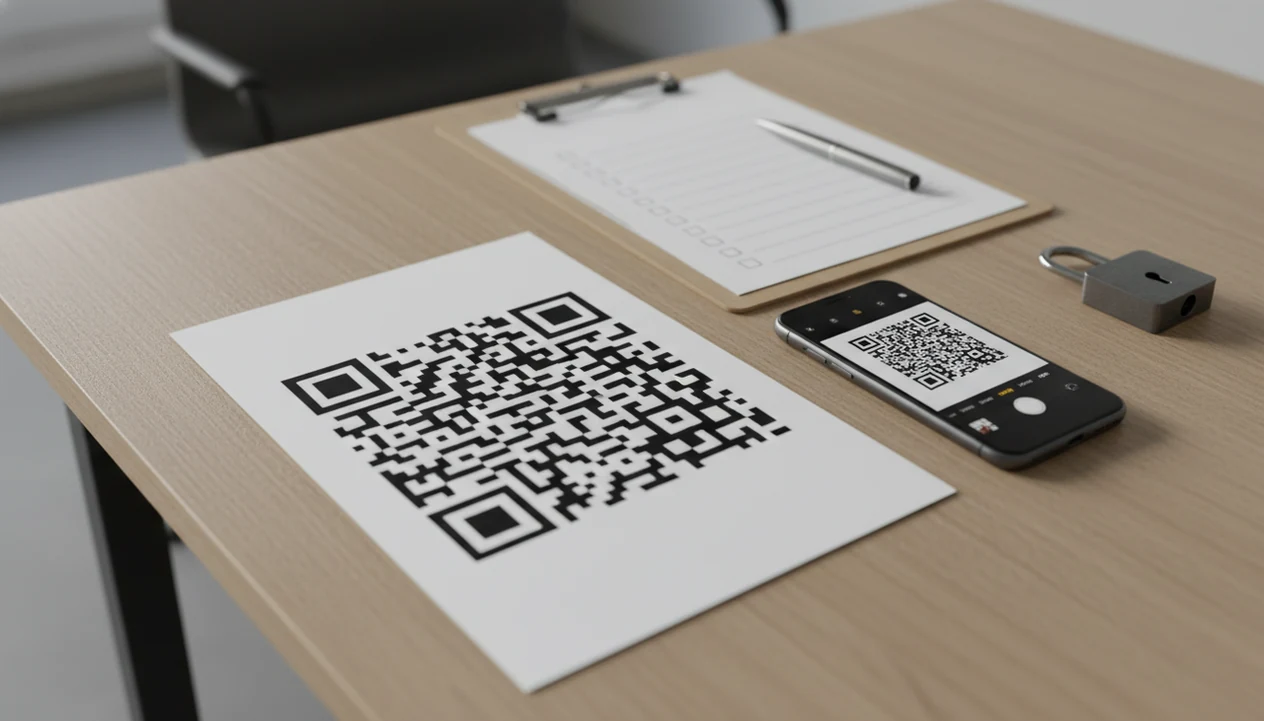
To share a form with a QR code, publish the form, open its Share or Publish panel, generate the QR image, then place that code on signs, slides, emails, or flyers where people can scan it with a phone. The key safety rule in how to share form with QR code is to set the right access permissions before you print or post it.
Definition: A form QR code is a scannable image that encodes the live URL of an online form, survey, quiz, registration, or check-in page.
TL;DR
- Create and publish the form first, then generate the QR code from the form’s share settings or a trusted QR tool.
- Match permissions to the location: public poster, private classroom, internal event, or invite-only registration.
- Test the QR code on multiple phones, use a short fallback link, and deactivate or rotate the form after the campaign.
Form QR Code Basics for Mobile Form Sharing
A form QR code is a visual shortcut to a form link, not a separate security layer. If someone can scan it, photograph it, or copy the decoded URL, they may be able to open the same form.
Use QR code form sharing for event check-ins, classroom surveys, storefront feedback, flyers, quizzes, registrations, and quick signups. We’ve seen it work well when a volunteer needs a “Volunteer shift” form on a lobby poster, or when a teacher wants students to scan a quiz link before dismissal.
The form must be published or live before the QR code can reliably send people to it. Tools like Forms AI, Google Forms, Typeform, and Jotform can turn a form URL into a code after the form is ready. Forms AI is a form builder app for creating forms, surveys, quizzes, and registrations with AI templates and drag-and-drop editing.
At-a-Glance QR Code Form Sharing Checklist
Use this checklist before you generate and distribute a form QR code. Most QR scans happen on phones, and mobile devices accounted for about 59% of global website traffic in Q2 2022, according to StatCounter (https://gs.statcounter.com/platform-market-share/desktop-mobile-tablet/worldwide/#quarterly-202202-202202-bar), so the mobile experience is not a side detail.
- Publish the form: Make sure the form is live, named clearly, and has a working confirmation message.
- Set access: Choose public, domain-restricted, password-protected, or date-limited access before sharing.
- Generate the QR: Use the form builder’s QR option or a trusted QR tool that points to the live URL.
- Test the scan: Check it on iPhone and Android cameras, not just your own phone.
- Provide a fallback URL: Add a short link under the code for old phones, blocked cameras, or weak signal.
Public QR codes are easy to photograph, forward, and repost. Treat a hallway poster like a public web link, because that is what it becomes.
Requirements Before You Create a Form QR Code
Have the form ready before you make the code. A completed form should include a clear title, plain-language questions, consent or data-use language, and a submit confirmation that tells people what happens next.
The link should use HTTPS and match the access level you actually need. Common choices include anyone with the link, domain-restricted access, password protection, or closing the form after a date. For a classroom handout, that may mean school-only access. For a public event registration table, “anyone with the link” may be the practical choice.
Plan the QR placement too. A hallway poster, event badge, storefront sign, slide, email, and classroom handout all create different privacy and scan-distance issues. If you are still building from a phone, the basics are similar to how to create a form with phone: start with the form’s job, preview, then share.
Add a short URL fallback. Someone will need it.
How QR Code Form Sharing Works Behind the Scenes
QR code form sharing works by encoding the same URL a person could type into a browser. The QR pattern is machine-readable text; the phone camera detects the pattern, decodes the URL, and offers to open it.
The usual flow is simple: camera scans code, phone decodes link, browser opens the form, and the form platform records the submission. The response list lives in the form builder, not inside the QR code. That matters when you are checking attendance counts beside coffee urns and wondering why one person submitted twice.
Static QR codes keep pointing to the original URL after printing. Dynamic QR codes route through a redirect service, so the destination can sometimes be changed later. Permissions, response limits, form status, and required sign-in rules are controlled by the form platform, not by the black-and-white QR pattern.
How to Use a QR Code to Share a Registration Form
Follow these steps to share registration form access without making people type a long link. For event organizers, a QR code is often easier than a clipboard because it moves names, emails, and session choices straight into a response list.
- Create or open the form in your form builder, using fields such as “Name,” “Email,” and “Preferred session.”
- Set permissions and privacy settings before sharing, especially if the form collects attendee names or payment details.
- Publish the form and open the Share or Publish panel.
- Generate or download the QR code image that points to the live form URL.
- Place the QR code on print or digital materials with a short instruction and fallback link.
- Test scans and monitor responses after launch, including duplicate entries and access errors.
A good AI Form Builder should help you create forms, surveys, quizzes, and registrations with intuitive drag-and-drop and smart templates, not force you into spreadsheet setup work.
Phone-Friendly Form QR Code Design Rules
QR-linked forms should be short, tap-friendly, and easy to finish while standing. Keep them focused on registrations, feedback, check-ins, signups, quizzes, and simple surveys rather than long questionnaires.
Use large tap targets, short labels, minimal typing, and a logical order. “Parent/guardian name” is clearer than “Responsible party.” “Preferred appointment time” works better near the top than buried after optional comments. If your form needs sections, a multi page form builder can make a longer flow feel less crowded on a phone.
QR scanning is mainstream enough to expect basic familiarity: Insider Intelligence estimated that 83.4 million U.S. smartphone users scanned a QR code in 2022 (https://www.insiderintelligence.com/content/us-qr-code-scanner-users-2022), and Statista reported growing U.S. QR-code usage for payments and marketing contexts (https://www.statista.com/topics/9975/qr-code-usage-in-the-us/). Still, complex forms tend to suffer from quick-scan traffic.
Short wins here.
Permission Settings for Public and Semi-Public Form QR Codes
Match form permissions to where the QR code will live. “Anyone with the link” often fits public events, but it is risky for sensitive data or internal-only forms.
| QR code location | Safer permission choice | Practical note |
|---|---|---|
| Public poster | Anyone with link, limited fields | Collect only what you need, such as name and RSVP status. |
| Classroom | School domain or class-only link | Add clear instructions near the code. |
| Internal company event | Domain restricted | Test with an employee phone before printing badges. |
| Invite-only registration | Password or unique invite link | Avoid posting the code in open spaces. |
| Storefront feedback form | Anyone with link | Keep it anonymous unless contact is needed. |
Use HTTPS, visible branding, and a readable form destination to build trust. The FBI warned in 2022 that cybercriminals can tamper with QR codes to redirect people to malicious sites or steal login and payment information (https://www.ic3.gov/PSA/2022/PSA220118), so people are right to hesitate at unknown codes. Collect only necessary information, and explain the data use beside the code or inside the form.
Common Myths About QR Code Form Sharing
Five myths cause most QR form mistakes. Fix these before your flyer goes to print.
- Myth: A QR code is private by default. Correction: it is only as private as the form URL and permissions behind it.
- Myth: A form is hidden if only the QR code is posted. Correction: anyone can forward the scan result or screenshot the code.
- Myth: A separate QR generator is always required. Correction: many form builders include QR sharing in the Share or Publish panel.
- Myth: Any tiny QR code will scan well on a flyer. Correction: size, contrast, distance, and paper finish affect scanning.
- Myth: Printed QR codes keep working after the form URL changes. Correction: static codes can break when the destination changes.
We once caught a broken code under fluorescent lights during a sign check. Better there than at the check-in desk.
Testing and Lifecycle Checks for a Form QR Code
Test the QR code before launch and manage it after the campaign ends. A code that works on your laptop screen can still fail on glossy paper, low light, or a phone with strict camera settings.
Scan with both iPhone and Android cameras. Check distance, contrast, lighting, paper finish, and placement. Submit a test response, then confirm it lands in the correct response table. If you see a duplicate email column before export, clean it up before real responses start coming in.
After launch, monitor submissions for spam, duplicate entries, and access problems. If the QR code is part of a broader QR code form sharing campaign, assign someone to check the response list during the first hour.
When the campaign ends, close, duplicate, redirect, or archive the form. Dynamic QR codes help when printed materials may outlive the original URL.
Limitations
QR codes are useful, but they do not solve every form-sharing problem. Build in a fallback and avoid using them as your only access method.
- Some users have old phones, disabled camera permissions, low battery, poor connectivity, or accessibility barriers.
- Public QR codes can be photographed, forwarded, copied, or covered by malicious stickers.
- QR access is not appropriate for highly sensitive forms without stronger authentication or access controls.
- Static printed QR codes can break if the form URL changes.
- Unknown QR codes may reduce trust because users worry about phishing.
- QR scans favor quick mobile submissions, not complex high-stakes questionnaires.
- A short URL fallback and visible branding should appear near the code.
For longer surveys, consider a link in email or an embed form on website option instead. The context gives users more room to read.
FAQ
Can forms have QR codes?
Yes. Any published online form can be shared by QR code if it has a usable URL.
Is a form QR code free?
Many form builders include basic QR sharing at no extra cost. Dynamic, branded, tracked, or editable QR codes may require a paid plan.
Are QR code forms secure?
QR code form security depends on the form link, HTTPS, permissions, data collection choices, and trust signals. The QR code itself is not a security control.
Can I print a form QR code?
Yes, you can print a form QR code on flyers, signs, badges, and handouts. Test the printed version for size, contrast, scan distance, and lighting before mass printing.
Can a QR code expire?
The QR image may keep scanning, but the form can be closed, deleted, moved, or redirected. Dynamic QR services may also allow expiration rules.
What size should QR codes be?
QR code size depends on viewing distance, print quality, and surrounding space. Testing on real phones is the final check.
Can I change the QR link?
Static QR codes cannot change once printed because the destination is built into the code. Dynamic QR codes can redirect to a different link if the QR service supports it.
Do QR forms work offline?
A phone may detect a QR code without internet access, but submitting an online form usually requires a connection. Provide a short fallback link for users who need to try again later.