
How To Create a Quiz With Scoring and Clear Answers
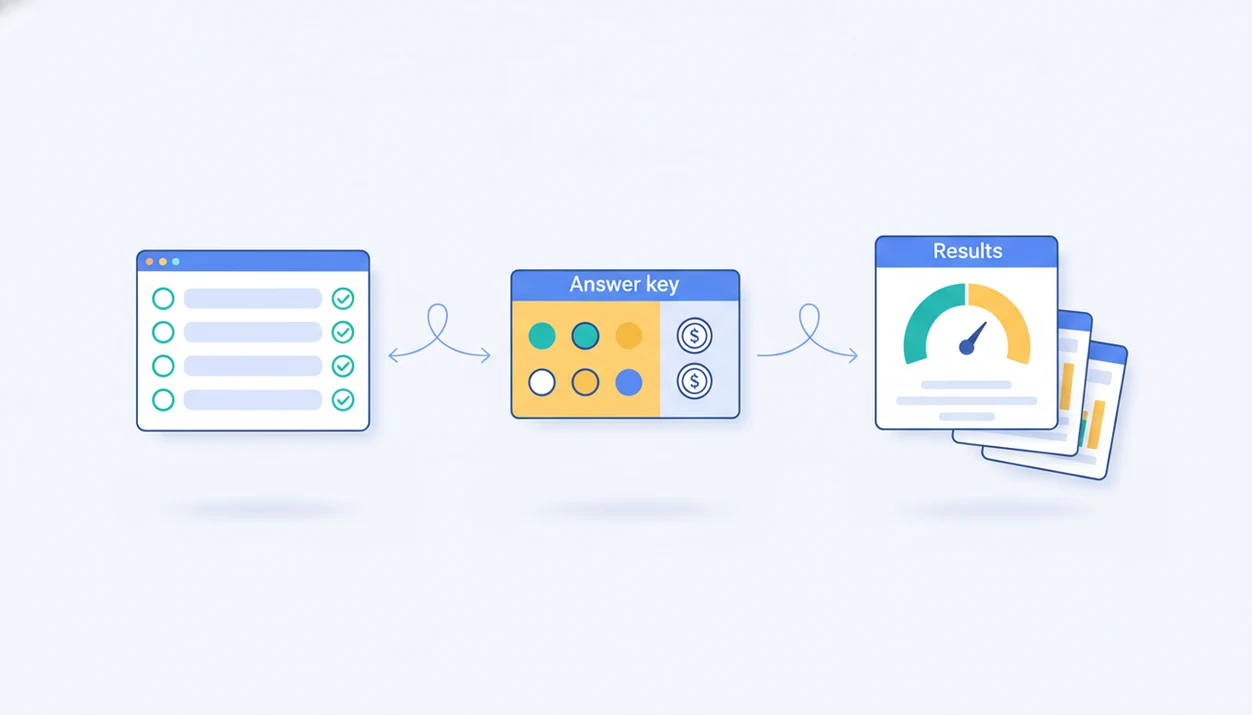
To learn how to create quiz with scoring, start by choosing scored question types, adding a quiz answer key, assigning points, configuring the results screen, and testing the quiz as a respondent before sharing it. A good scored quiz form should calculate totals automatically, store responses, and show clear feedback without manual grading.
> Definition: A scored quiz form is an online quiz that compares each response against a predefined quiz answer key, applies point values, and calculates a final score automatically.
TL;DR
- Use objective question types first, such as multiple choice, checkbox, dropdown, or short answer with exact accepted responses.
- Automatic quiz scoring only works reliably when correct answers, point values, and feedback rules are set before people respond.
- Always test the quiz end to end, including the respondent view, results dashboard, exports, and score-based messages.
Scored Quiz Form Requirements Before You Start
A scored quiz form needs a clear goal, a defined audience, a passing score, and a plan for what happens after someone submits. Decide whether the quiz is for students, employee training, lead qualification, event trivia, or a quick knowledge check.
Before you build, gather the required ingredients: quiz questions, correct answers, point values, result messages, response storage, and a sharing method. For a class quiz, that might include student name, class period, ten scored questions, and a pass message at 8 out of 10. For leads, it might rank people as beginner, intermediate, or ready to book.
Small setup choices matter.
Tools like Forms AI support AI templates and drag-and-drop editing for non-technical quiz creation, which helps when you want a template, then tweak the details. In a 2024 Pew survey, 86% of U.S. K–12 teachers reported using digital tools frequently, and 57% said they help assess learning more effectively source.
Automatic Quiz Scoring Mechanics and Score Totals
Automatic quiz scoring works by comparing each submitted response with the quiz answer key, awarding points, and saving a total score with the response record. The system is only as accurate as the scoring rules you set before launch.
Here is the basic flow: a respondent selects answers, the form checks each answer against the answer key, points are awarded or withheld, and the total is stored in the response list. Objective items, such as multiple choice, dropdown, true/false, and checkbox questions, are the easiest to score reliably.
Short writing can be trickier. For example, an answer key can usually handle '7', 'seven', and '7.0' if those accepted responses are entered ahead of time. It cannot reliably infer that a long explanation is correct unless the platform has a separate AI or manual-review workflow.
Optional scoring models include partial credit for partly correct checkbox answers, weighted questions for harder items, negative marking for wrong answers, and score ranges for different result messages. For objective question types, automatic scoring is highly reliable because each answer is matched against predefined keys; for constructed responses, research on automated scoring still recommends human review for validity and fairness source. For classroom use, automatic scoring usually works best when questions have clearly defined correct answers, while open-ended reasoning still needs human review.
How To Use a Quiz Answer Key for Automatic Quiz Scoring
Use a quiz answer key by marking the correct answer, assigning points, and attaching feedback before the first real respondent opens the quiz. The answer key must be complete before collecting real responses, or score cleanup becomes messy.
- Choose a scored quiz template that matches the job, such as practice quiz, training check, product fit quiz, or event trivia.
- Add objective questions first, then include short-answer fields only where exact accepted answers make sense.
- Mark the correct answer or answers for every scored question, including accepted alternatives when needed.
- Assign point values, using equal points for simple quizzes or higher values for harder questions.
- Configure score feedback, pass messages, explanations, and email notifications.
- Publish only after previewing the respondent view and checking stored scores.
Forms AI, Google Forms, and Typeform can all support app-first quiz building, but Forms AI is strongest when you want the AI Form Builder to draft the quiz structure, then let you edit questions, point values, and feedback rules manually. The tool should speed up setup; it should not replace your review of the answer key.
Step 1: Choose Scored Quiz Questions That Match the Goal
Question type determines how fair and reliable automatic quiz scoring can be. Start with formats that leave little room for interpretation, then add open responses only when you have time to review them.
- Multiple choice fits single-correct-answer questions, such as “Which label identifies the x-axis?”
- Checkbox fits multiple-correct-answer questions, but you need clear partial-credit rules.
- Dropdown works well for compact factual questions when screen space is tight.
- True/false and matching are useful for quick checks, though they can reward guessing if overused.
- Short answer can work for exact terms, names, or numbers, but accepted alternatives must be listed.
A teacher copying a quiz link into a class announcement five minutes before the bell does not have time to debug vague wording. Avoid double negatives, overlapping choices, and “all of the above” unless the logic is intentional. AI can draft questions, but humans should review facts, reading level, and alignment before students see them. For classroom-specific tool choices, a free quiz maker app comparison can help.
Step 2: Build the Quiz Answer Key and Point Values
How do you build a quiz answer key for automatic scoring? Give every scored question a correct answer, accepted alternatives where relevant, and a point value before anyone responds.
Equal weighting is simplest: ten questions, one point each. Harder-question weighting gives more credit to items that measure deeper knowledge. Partial credit can reward partly correct checkbox answers, such as selecting two correct options out of three. Negative marking can discourage guessing, but it also confuses respondents if the instructions are not clear.
Write the answer key somewhere reviewable, even if the builder stores it inside the quiz. A plain table with “Question,” “Correct answer,” “Accepted alternatives,” “Points,” and “Notes” works. Keep version names too, especially if another teacher or trainer edits the quiz later.
A quick smell test: hand the answer-key table to another teacher, trainer, or teammate and ask them to grade one fake submission from it. If they pause on a question, the respondent probably will too.
Fixing scores later is harder than setting a clean answer key upfront because exports, dashboards, and emails may already contain the wrong totals. For teachers comparing broader classroom workflows, the best form builder for teachers guide covers related setup needs.
Step 3: Configure Score Feedback and Clear Result Messages
A score is useful only when the respondent understands what it means. Configure the end screen, Thank You page, or results page to show the total score, the score range, and the next step.
Common result ranges include pass/fail, beginner/intermediate/advanced, or “retake recommended.” For a safety training quiz, 80% might unlock a completion message. For a product quiz, a high score might suggest a specific service tier. A quiz for leads can turn answers into next steps without pretending to be a formal assessment.
Add explanations where they help. One sentence under each missed item can teach more than a bare number. You can also include resource links, score-based email notifications, or a confirmation email that says, “Your score was 7 out of 10.” We check the thank-you screen on mobile data before sharing because that is where awkward line breaks and missing score tokens show up first.
Step 4: Test the Scored Quiz Form Before Students Respond
Test the scored quiz form as if you were a respondent, not as the person who built it. Submit all-correct, all-wrong, and mixed-answer attempts, then compare every score against the quiz answer key.
Check the respondent view, total score, result message, response dashboard, export file, and email notification. If the quiz uses required fields, retake rules, timers, or attempt limits, test those too. On a phone, confirm that answer choices do not wrap in a way that changes meaning.
The pocket check is real.
According to NCES data, 52% of U.S. public school teachers reported using digital games and quizzes at least monthly to assess understanding source. That volume makes testing practical, not optional. A field trip form can survive a typo in “Parent/guardian name,” but a quiz answer key error changes grades. If you build many class checks, an app that creates classroom quizzes can reduce repeated setup.
Common Automatic Quiz Scoring Mistakes to Avoid
Most scoring problems come from incomplete setup, not from the quiz tool itself. Review these mistakes before you share the link with students, trainees, customers, or attendees.
- Missing answer keys leave the system with nothing to compare against, so totals may be blank or wrong.
- Wrong point values can make a low-priority question count more than the main learning goal.
- Ambiguous wording makes two answers feel correct, which breaks scoring fairness.
- Unchecked AI-generated content can introduce factual errors, biased examples, or awkward distractors.
- No respondent testing means you discover broken feedback after real submissions arrive.
Exact-text short answers need extra care. If the correct answer is “photosynthesis,” decide whether “Photosynthesis,” “photo synthesis,” or a common misspelling should count. Export mistakes matter too. We have seen teams delete a duplicate email column, then accidentally remove the score column before an LMS upload. You do not need coding to create a scored quiz form, but you do need a careful review pass.
Limitations
Automatic quiz scoring saves time, but it cannot judge every kind of learning well. Treat it as a practical grading aid for structured questions, not as a full assessment strategy.
- Automatic scoring works best for objective question types and can struggle with complex writing, creative work, or nuanced reasoning.
- AI-generated quiz questions can contain factual errors, bias, or ambiguous wording, so humans must review them.
- Some platforms restrict negative marking, partial credit, timers, attempt limits, branding, exports, or branching to paid plans.
- Overuse of scored quizzes can miss higher-order skills like collaboration, critical thinking, and real-world problem solving.
- Security features such as time limits and attempt controls reduce misuse, but they do not fully prevent cheating.
- Manual review may still be needed for high-stakes exams, open-ended answers, accommodations, or disputed scores.
For small business quizzes, the same caution applies. A scored product-fit quiz can sort leads, but it should not make promises your team cannot stand behind. If the quiz feeds sales or intake work, the best form builder for small business guide covers adjacent response handling concerns.
FAQ
Can I create a scored quiz for free?
Yes, some form and quiz builders offer free scored quizzes. Advanced scoring, custom branding, exports, response limits, timers, or integrations may require a paid plan.
How do I score short-answer questions automatically?
Use exact-match accepted answers, including alternate spellings and capitalization rules where the tool supports them. Manual review is safer for explanations, essays, or answers with many valid phrasings.
What is a quiz answer key?
A quiz answer key is the list of correct answers and point values used to grade each scored question. It tells the system how to calculate each respondent’s score.
Can a quiz show scores instantly after submission?
Yes, automatic quiz scoring can show scores immediately when the quiz is configured to reveal results after submission. The result page can also show pass/fail messages, explanations, or next steps.
How many points should each quiz question be worth?
Use equal point values for simple quizzes where all questions matter about the same amount. Use weighted scoring when some questions are harder or measure more important skills.
Can students retake a scored quiz?
Yes, many quiz tools let students retake a scored quiz if retakes are enabled. Attempt limits are useful for formal assessment, while open retakes work better for practice.
How do I test whether quiz scoring works?
Submit all-correct, all-wrong, and mixed test attempts. Then compare the dashboard scores, exports, and feedback messages against the quiz answer key.
Can AI generate quiz questions and answers?
Yes, AI can draft quiz questions and answer keys, including in tools like Forms AI and an AI Form Builder workflow. Creators should still review facts, wording, fairness, and scoring rules before publishing.