
What App Identifies Questions in PDF Files and Makes a Form?
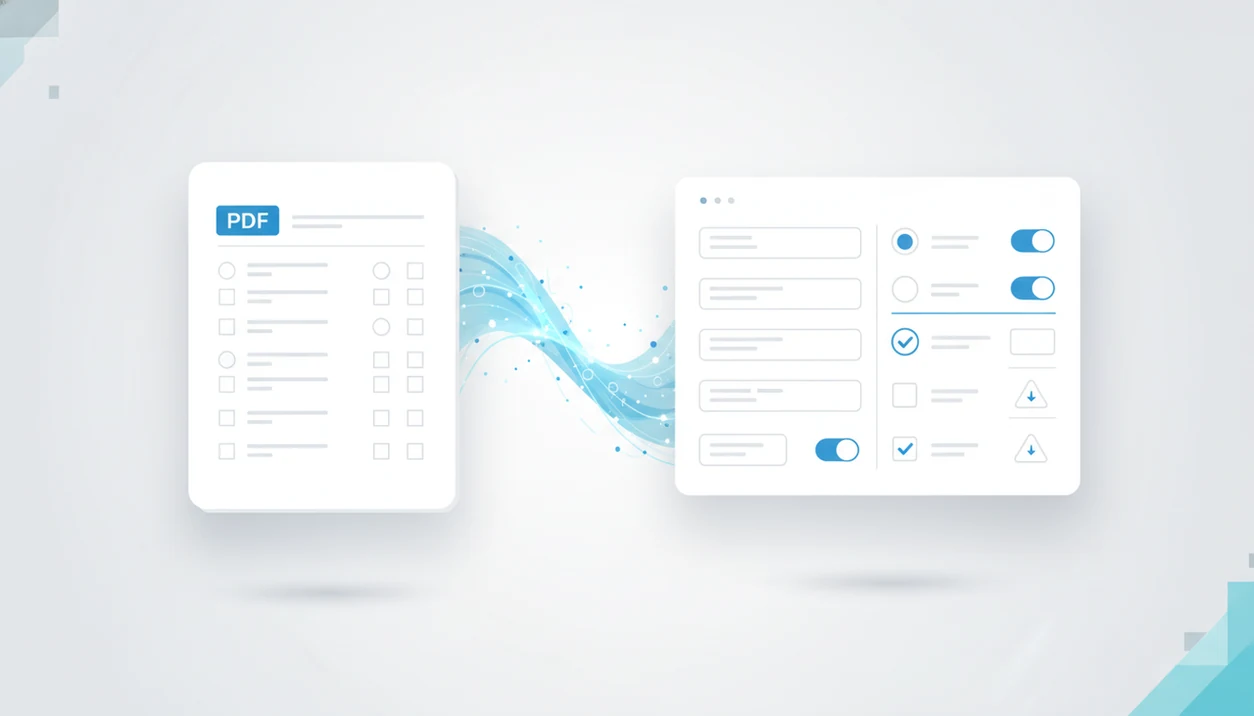
A PDF to form app with AI extraction is the right choice when you ask what app identifies questions in PDF and need the document turned into editable fields. The right fit is not a generic “chat with PDF” tool, but an AI form builder that can read the document, detect questions, suggest field types, and let you review the form before publishing.
Definition: A question-identifying PDF to form app reads a PDF, detects question-like text and answer structures, then converts them into editable online form fields.
TL;DR
- Most PDF chat apps answer questions about a PDF; they do not reliably extract every question into a reusable form.
- Look for OCR, layout detection, question extraction, field-type suggestions, drag-and-drop editing, and human review.
- Choose a PDF to form workflow when you want to turn PDF into form assets for surveys, quizzes, registrations, and intake forms.
PDF to Form Apps for Question Detection
A PDF to form app is the category you need when the goal is to extract questions from PDF files and publish them as editable fields. A PDF reader can display the file, and a PDF chat tool can answer questions about it, but neither always creates a usable form.
The app should identify prompts, preserve answer choices, and map each item into a field type like short answer, checkbox, rating, date, or file upload. That difference matters when a teacher has a worksheet PDF and needs a quiz link before the final bell.
Adobe has reported an estimated 320 billion PDFs in circulation globally as of 2020, which explains why PDF conversion keeps showing up in daily work source. Tools like Forms AI can help turn static questions into forms, surveys, quizzes, and registrations, but review still matters.
The form is the output, not the upload.
7-Point Checklist for PDF Question Extraction Apps
Use this checklist to judge whether a PDF question tool can create a publishable form, not just export text. Export alone is not enough if you need clean fields, response data, and a shareable link.
| Capability | What to check | Why it matters |
|---|---|---|
| OCR | Can it read scanned PDFs? | Scans are images until OCR converts them. |
| Layout detection | Can it handle columns, tables, and sections? | Layout affects question order. |
| Question detection | Can it find prompts without question marks? | Many forms use labels, not sentences. |
| Field mapping | Does it suggest field types? | “Volunteer shift” should not become a paragraph box. |
| Answer choices | Does it preserve options? | Lost choices break quizzes and surveys. |
| Editing | Can you drag, rename, and reorder fields? | Real forms need cleanup. |
| Privacy controls | Can you manage access, retention, and sharing? | Sensitive PDFs need extra care. |
For a deeper prompt-based workflow, compare this with an app that generates forms from prompts.
Before You Upload a PDF
Prepare the PDF before extraction so the app starts with the clearest possible source. A few minutes of cleanup can prevent missing questions, bad field types, and privacy surprises later.
- Choose the cleanest file you have, preferably the original digital PDF rather than a phone photo, screenshot, or scan of a printed packet. Straight pages and sharp text give the tool less to guess.
- Check the text type by trying to highlight a sentence in the PDF. If the words are selectable, extraction is usually easier; if the page behaves like one image, expect OCR and more review.
- Remove extra pages that do not contain questions, answer choices, instructions, consent language, or respondent-facing context. Covers, ads, answer keys, and old notes can confuse the draft.
- Review sensitive content before uploading. Look for personal, medical, financial, student, client, or employee data, then decide whether to redact it or use a different workflow.
- Decide the final format before conversion. A quiz needs scoring, a survey needs response analysis, an intake form needs careful labels, and a registration form may need dates, capacity, or confirmation text.
Named Shortlist of Apps for PDF Question Workflows
Here are the named options people usually compare for PDF question workflows. Verify current features before choosing, because PDF chat and form-building features change often.
- Forms AI: Better suited when the end goal is an editable form, survey, quiz, registration, or intake form. Apps in this category focus on fields and responses, not only document answers.
- Adobe Acrobat AI Assistant: Often associated with asking questions about PDF content and summarizing documents. Check whether your plan supports the structured extraction you need.
- ChatPDF: Commonly used to ask questions about a PDF. Confirm whether it can produce reusable form fields, not just text answers.
- AskYourPDF: Useful for document Q&A workflows. Test export structure before relying on it for form creation.
- PDF.ai: Built around interacting with PDF content. Review whether it supports field mapping and publishing.
Good AI form builder apps create editable forms, surveys, quizzes, and registrations with drag-and-drop and smart templates, not a finished compliance workflow.
PDF Question Detection Pipeline: OCR, Layout, and Field Mapping
PDF question extraction works by turning document content into structured form data. The system usually reads the file, separates text blocks, detects likely questions, then maps them to field types.
- Upload comes first: The app receives the PDF and checks whether it contains selectable text or only scanned images.
- OCR handles scans: Optical character recognition turns image text into machine-readable words. Native digital PDFs are easier.
- Layout segmentation separates blocks: The tool tries to distinguish headings, instructions, tables, sidebars, and answer areas.
- Question detection finds patterns: It looks for question marks, numbered prompts, blanks, checkbox lists, rating scales, and answer options.
- Field mapping builds the draft: The app suggests short answer, multiple choice, checkbox, date, file upload, or consent fields.
Identifying question text is not the same as building a usable form. A price estimate note on a workbench still needs field names, required settings, and clean response columns.
6 Steps to Turn PDF Questions Into Form Fields
The safest way to turn PDF into form fields is to extract first, then review every generated field before sharing. Start with the form’s job, because a quiz, intake form, and RSVP form need different settings.
- Upload the PDF into a PDF to form app or AI form builder.
- Run OCR or extraction so scanned pages and digital text can be read.
- Review detected questions against the original PDF, page by page.
- Choose field types such as short answer, checkbox, multiple choice, rating, date, or consent.
- Edit logic and wording with drag-and-drop tools, templates, and plain-language labels.
- Publish and test the shareable link before sending it to respondents.
A mobile-friendly AI form builder with drag-and-drop editing and smart templates helps when a small business owner edits an order form from a phone between customer calls. If you are starting from instructions instead of a PDF, AI form prompts can help shape the first draft.
Common Myths About PDF Question Extraction Apps
Document automation is useful, but it is not magic. A 2023 Adobe Acrobat survey reported that nearly 9 in 10 workers experience document-related frustration at least weekly source.
Myth 1: Any chat-with-PDF app can create a form. Many can summarize or answer questions about a PDF, but that is different from structured form extraction.
Myth 2: Extraction is always 100% accurate. Low-resolution scans, tilted pages, and dense tables still cause errors.
Myth 3: No human review is needed. Someone must check labels, answer choices, required fields, and branching.
Myth 4: Sensitive PDFs are automatically safe. Privacy depends on storage, retention, access controls, and your own obligations.
A waitlist link in a launch post feels simple. The hidden work is making sure “Preferred appointment time” lands in the right response column.
Verification Steps Before Publishing an Extracted PDF Form
Does the converted form match the original PDF question by question? That is the check that matters before you send the link to customers, students, volunteers, or clients.
Compare the online form with the PDF from top to bottom. Confirm each field type: short answer, multiple choice, checkbox, rating, date, file upload, consent, and any “Other” option. Then test required fields, branching logic, quiz scoring, and confirmation messages.
Send one test submission using realistic answers. Open the response list and look for messy columns, missing choices, duplicate email fields, or answers saved under the wrong label. Delete the duplicate email column before export. Small cleanup, big difference.
McKinsey estimated that employees spend about 19% of the workweek searching for and gathering information source. For repeated paperwork, extraction can reduce retyping time, but quality control still protects the final data.
If your source is a webpage instead of a PDF, the related workflow is covered in what app identifies survey questions on webpage.
Common Mistakes When Converting PDF Questions
The most common mistakes happen after extraction, when the draft looks finished but has not been checked against the source. Treat the converted form like a first pass, especially when the PDF uses columns, checkboxes, or long answer choices.
- Compare every generated question with the original PDF before publishing. Skipping this pass is how missing labels, renamed prompts, and wrong field types reach real respondents.
- Keep checkbox groups together when several options answer one prompt. If each box becomes its own unrelated question, response data gets noisy and the respondent experience feels broken.
- Look for wrapped choices at page breaks, column breaks, and table edges. An option that continues on the next line can be dropped or split into strange text.
- Test required fields, scoring rules, branching, and confirmation messages with a realistic submission. A quiz can look right on screen but still save the wrong score.
- Check retention, access, and sharing settings before uploading sensitive PDFs. Personal, student, medical, client, or employee details deserve a privacy review before the file enters any tool.
Limitations
PDF question extraction can speed up form building, but it still has real limits. Treat the converted form as a draft, not the final version.
- Low-resolution scans may produce OCR mistakes, especially with small text or faded copies.
- Handwriting is harder to read than typed text and may need manual entry.
- Tables, sidebars, and multi-column layouts can scramble question order.
- Merged questions may become one long field instead of separate fields.
- Answer choices can be missed when they wrap across lines or pages.
- Rhetorical questions in instructions may be mistaken for form questions.
- Privacy, retention, compliance, and user permissions still need review.
- Scoring rules for quizzes may not transfer unless you set correct answers manually.
The U.S. Bureau of Labor Statistics tracks millions of secretaries and administrative assistants in roles that often involve document handling source. Automation helps, but someone still owns the final form and response data.
FAQ
Can AI extract questions from PDF?
Yes. AI can extract questions from many PDFs, but quality depends on text clarity, OCR accuracy, layout complexity, and whether the PDF is scanned.
Which app turns PDF into form?
A PDF to form app or AI form builder is the relevant category. Forms AI is one option when you need editable forms, surveys, quizzes, or registrations rather than only PDF summaries.
Is ChatPDF a form builder?
ChatPDF-style tools are mainly known for asking questions about PDFs. They may not create publishable forms with field types, response lists, and sharing controls.
Can scanned PDFs become forms?
Yes, scanned PDFs can become forms if the app runs OCR first. They usually need more manual correction than native digital PDFs.
Can PDF questions become quizzes?
Yes. Extracted PDF questions can become quizzes if the app supports answer choices, scoring, correct-answer settings, and respondent feedback.
Are PDF to form apps accurate?
Accuracy varies by PDF quality, layout, language, scan resolution, and field complexity. Human review is required before publishing.
Can Google Forms import PDFs?
Google Forms does not natively convert full PDFs into structured form questions. You usually need another extraction tool or manual entry.
Do PDF form apps keep data private?
Privacy depends on the app’s security, retention rules, access controls, and your compliance requirements. Review sensitive documents before uploading them to any tool.