
QR Code RSVP Form for Fast Guest Check-Ins
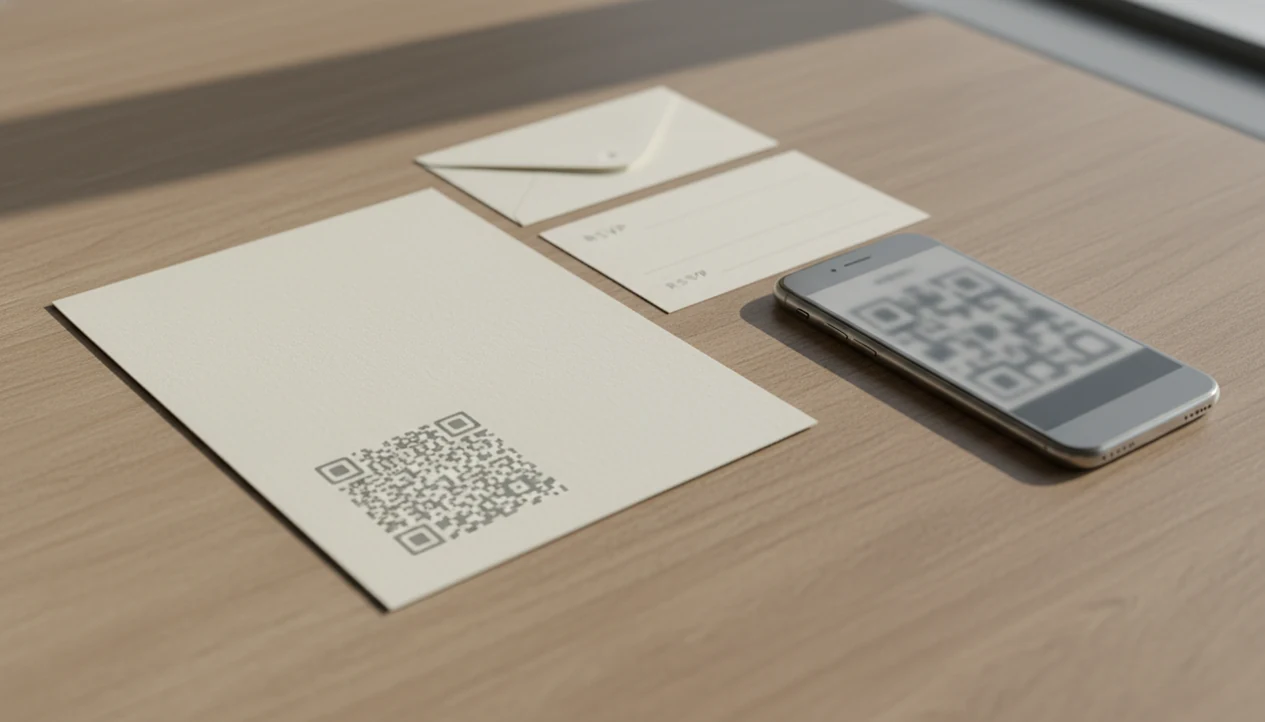
A QR code RSVP form lets guests scan a code on an invitation, poster, email, or check-in table and submit their event response on a mobile-friendly form. The safest setup uses a public or properly permissioned form, minimal data collection, a tested QR code, and a backup RSVP option for guests who cannot scan.
Definition: A QR code RSVP form is an online event response form opened by scanning an RSVP QR code instead of typing a URL or mailing a paper reply card.
TL;DR
- Use a mobile-friendly event QR form that is not accidentally locked behind a login.
- Print the RSVP QR code large enough to scan, with clear text such as “Scan to RSVP.”
- Collect only the guest details you need, explain how responses will be used, and provide a phone, email, or paper backup.
For hosts who want an app-first setup, Forms AI can work as an AI Form Builder for QR code RSVP forms: start from an RSVP template, keep required fields short, preview on mobile, and use the final share link to create the QR code.
QR code RSVP form basics for event hosts
A QR code RSVP form is a web form reached through a scannable code, and the code usually stores only the form’s URL. Guests scan, open the page, and submit their event response from a phone.
Hosts use RSVP QR codes for weddings, birthdays, school events, fundraisers, conferences, and private parties. The form can ask for attendance, guest name, plus-ones, meal choices, accessibility needs, and contact details. Keep the required fields few. A guest standing near a check-in table should not need three minutes to answer.
Tools like Forms AI help non-technical event organizers start with a template, then tweak fields from a phone. An app-first AI form builder for creating forms, surveys, quizzes, and registrations with intuitive drag-and-drop and smart templates should help you build, preview, and share, not turn a dinner headcount into a database project.
At-a-glance RSVP QR code setup checklist
- Create the RSVP form first, then generate the QR code from the final shareable link.
- Set access so guests are not blocked by a work, school, or platform login.
- Test the RSVP QR code on both iPhone and Android before printing anything.
- Add fallback text beside the code, such as a short URL, email, or phone number.
- Use plain instruction copy, for example: “Scan to RSVP by May 10.”
For event hosts, a tested QR code is often safer than a pasted long URL because it reduces typing errors and sends responses into one response list. The parking-lot check is real. If an event organizer can scan the poster while a vendor texts about table numbers, guests probably can too.
Before you create a QR code RSVP form
Before you create a QR code RSVP form, settle the event rules and response path first. The QR code should be the last printable piece, not the place where you discover the deadline, guest source, or meal logic is still undecided.
- Confirm the RSVP deadline, event date, and the source of truth for the guest list, whether that is a spreadsheet, planner file, school roster, or exported contact list.
- Choose the form platform before making any printable code, because changing platforms later can change the final share link.
- Decide which questions are required, which are optional, and which are too sensitive for this form. Attendance and name are usually essential; private health details may need a lighter wording or a direct contact option.
- Prepare a backup reply path, such as a phone number, email address, short URL, or paper card, so guests who cannot scan are not left out.
- Gather meal choices, accessibility wording, and plus-one rules before building conditional fields, especially if different guests should see different follow-up questions.
QR code RSVP form scan flow and response data
A QR code RSVP form works by encoding a URL, not by storing each guest’s form answers inside the QR code. The guest scans the code, the phone camera reads the URL, the browser opens, the event QR form loads, and the response submits into your form system.
Responses may appear in a form dashboard, spreadsheet export, email notification, or event list. We usually check for duplicate email columns before exporting, because messy RSVP data becomes catering confusion fast.
Static QR codes point to one fixed URL. Dynamic QR codes route through an editable link, which can be safer after printing if the form URL changes. If you use a dynamic QR code, keep the redirect account active until the RSVP deadline has passed; an expired redirect can break a printed invitation even when the form itself still exists. In 2022, 83% of U.S. adults reported owning a smartphone, according to Pew Research Center data source. That still leaves real guests who need another way to reply.
5 steps to create a QR code RSVP form safely
- Build a mobile-friendly RSVP form with fields for attendance, guest name, plus-one count, meal choice, and any accessibility note.
- Set permissions so the form is public to invited guests, or restricted only when you truly need that control.
- Generate the QR code from the final form link, not a draft preview link or owner-only edit page.
- Test the full path on iPhone, Android, mobile data, and an incognito browser before sending files to print.
- Share the code near clear copy such as “Scan to RSVP by May 10,” plus a short URL or contact option.
Apps such as Forms AI, Google Forms, Jotform, and Tally can support this workflow in different ways. Forms AI templates, drag-and-drop editing, and smart conditional logic are useful when meal questions should appear only for guests who select “Attending.” If you are building mostly from a phone, the steps in how to create registration form with phone follow the same pattern.
Event QR form access settings that prevent blocked guests
Will guests be blocked when they scan the RSVP QR code? They can be, if the form is restricted to signed-in users or limited to accounts from a school, company, or form owner’s workspace.
In Google Forms, specifically check settings such as 'Restrict to users' and 'Limit to 1 response.' In Jotform or Tally, open the public share link from a logged-out phone before you send the QR code to print.
Public links are usually easier for social events. Restricted access can make sense for internal conferences or classroom events, but test it carefully. One-response-per-account sounds tidy, but it can fail when two family members share a device or an older attendee does not have the required account.
For duplicate prevention, use name matching, email confirmation, or a review step in the response list. A teacher copying a quiz-style event link into a class announcement five minutes before the bell should still scan it from a student view. Test in an incognito browser and on a phone that is not logged into the form owner account. That catches permission mistakes before guests do.
RSVP QR code print design rules for reliable scans
- Print RSVP QR codes at roughly 1 x 1 inch or larger on invitations; use larger codes for posters, table signs, and entry areas. - Use strong contrast, usually a dark code on a light background. - Leave a quiet zone, meaning blank space around the code so the camera can find its edges. DENSO Wave, the inventor of the QR Code, recommends a margin of at least four modules around the code for reliable reading (source). - Place the code on a flat, non-glossy area when possible, away from folds, glare, and curved surfaces. - Avoid over-stylized codes, low-contrast colors, and heavy logo overlays that cover key scan patterns.
Put the code beside clear text like “Scan to RSVP,” not buried near decorative copy. Print one proof first. Then test it under hallway light, evening light, and a phone with a scratched camera lens. Tiny failures show up early that way.
Common QR RSVP form mistakes and quick fixes
Most QR RSVP problems come from the wrong destination, blocked access, or a code that looked fine on screen but failed in print. Fix the form link first, then test like a real guest before you reprint or resend anything.
- Regenerate the QR code from the final public form URL if a scan opens an edit page, draft preview, deleted form, or old event. Do not reuse a code made before the share settings were finished.
- Test access from an incognito browser and a logged-out phone, especially if the form lives inside a work, school, or account-based tool. If guests see a login wall, change the permissions or provide a different public link.
- Enlarge the printed code if scans are slow or inconsistent, and keep blank space around all sides so the camera can recognize the square.
- Review duplicate names, emails, or timestamps in the response list instead of forcing every guest into account login. Families and couples often reply from shared devices.
- Route guests who still cannot scan to the backup phone number, email, short URL, or paper RSVP path printed beside the code.
QR code RSVP form privacy and scam safeguards
- Collect only necessary guest data, such as name, attendance, meal choice, and contact method.
- Use HTTPS and a reputable form platform, especially when collecting phone numbers or accessibility notes.
- Tell guests how their information will be used and who can access the response list.
- Set a retention period, such as deleting exported guest data after seating, catering, or follow-up is complete.
- Show a visible branded URL or short URL so guests can verify the destination before entering personal details.
The FTC has warned consumers about QR-code-based scams, including codes that hide risky links source. A printed invitation feels trustworthy, but guests still deserve a recognizable destination. GDPR, CCPA, and other privacy rules may apply in some contexts; this is a caveat, not legal advice. For larger events, the best event registration form app choice may depend partly on privacy controls.
Common myths about scan-to-RSVP codes
Myth 1: QR RSVP forms are unsafe by default. The QR code is just a route to a URL. Risk depends on the platform, permissions, data collected, and whether guests can verify the link.
Myth 2: Every guest can use a QR code. Some guests do not have smartphones, steady internet, or comfort with scanning. Offer another path.
Myth 3: Tiny QR codes always scan. Small, glossy, low-contrast, or over-decorated codes often fail. A final printed proof matters more than the screen preview.
Myth 4: Printed QR codes can never be changed. Static codes are fixed. Dynamic QR codes may let you change the destination after printing, depending on the tool. If you need a simpler setup, a free RSVP form app may be enough.
Limitations
QR RSVP forms are useful, but they still need a backup plan.
- Some guests may not own smartphones or may not feel comfortable scanning QR codes.
- Poor lighting, weak camera quality, glossy paper, smudged ink, or glare can break scanning.
- A wrong, deleted, private, or unavailable form link can make every printed QR code fail at once.
- Privacy compliance is not automatic just because the RSVP uses a QR code.
- Over-customized QR codes with logos, unusual shapes, or low-contrast colors can reduce reliability.
- One-response-per-account settings can block couples, families, or guests using shared devices.
- A backup phone number, email address, short URL, or paper RSVP option is still recommended.
For school events, volunteer nights, or community fundraisers, pair the QR code with a plain-language contact method. A front-desk volunteer should not have to troubleshoot someone’s phone while the line grows.
FAQ
How do QR RSVPs work?
A guest scans an RSVP QR code with a phone camera, which opens an online RSVP form. The guest submits attendance details, and the host receives the response in the form tool.
Can Google Forms make RSVP QR codes?
Google Forms can host the RSVP form, but the QR code usually comes from a separate QR generator or a built-in sharing tool. Test the final scan link before printing.
Are RSVP QR codes free?
Static QR codes are often free. Dynamic QR codes, scan tracking, branded links, or editable destinations may require a paid tool.
What size should RSVP QR codes be?
Use roughly 1 x 1 inch as a practical minimum for invitations. Posters, table signs, and check-in displays should use larger codes.
Do wedding QR RSVPs work?
Yes, wedding QR RSVPs work well when the form is mobile-friendly, tested, and not locked behind a login. Include a phone, email, or paper option for guests who cannot scan.
Can guests change RSVP answers?
Guest edits depend on the form settings. Some forms allow edit links in confirmation emails, while others require the host to update the response manually.
Are QR RSVP forms private?
QR RSVP form privacy depends on the form platform, access settings, data minimization, and retention choices. Forms AI and similar tools should still be configured carefully.
What if guests cannot scan?
Offer a short URL, phone number, email address, or paper RSVP alternative. For larger guest lists, an app that makes RSVP forms can help keep both QR and manual responses organized.